Before you start
- This feature is available to anyone with at least “can view” access to a file, allowing you to add and view comments.
- You need a Figma account to use the platform.
Steps to add a comment:
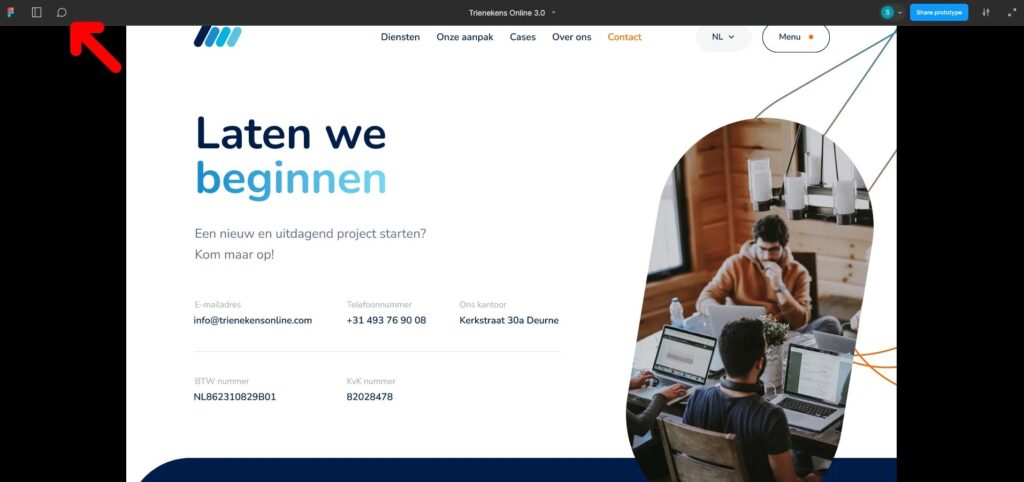
Step 1: Activate comment mode
Click the chat icon to activate comment mode. You can also use the shortcut ‘c’ to add comments instantly.
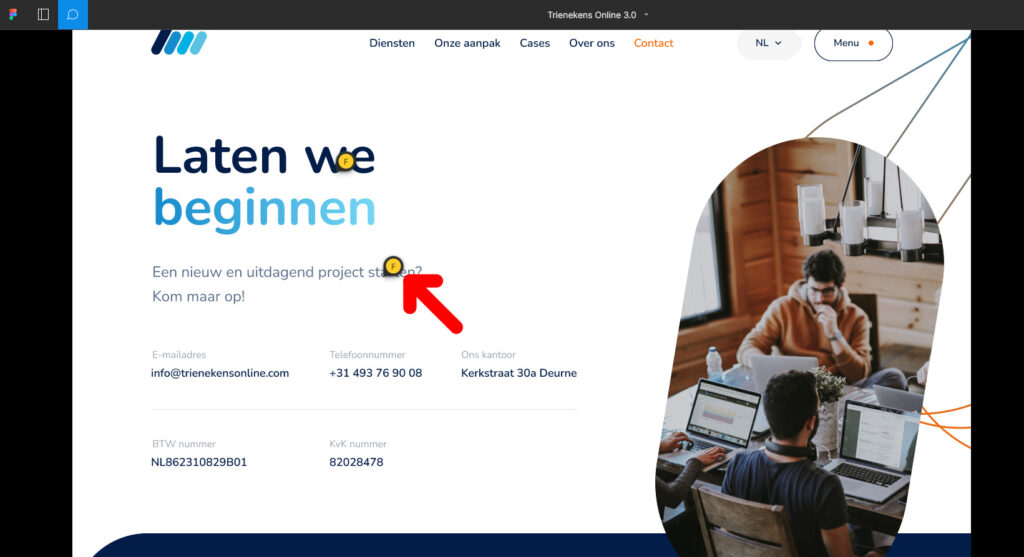
Step 2: Choose a location to place your comment:
- Click the desired spot on the canvas to pin your comment.
- Or click and drag your cursor to select an area.
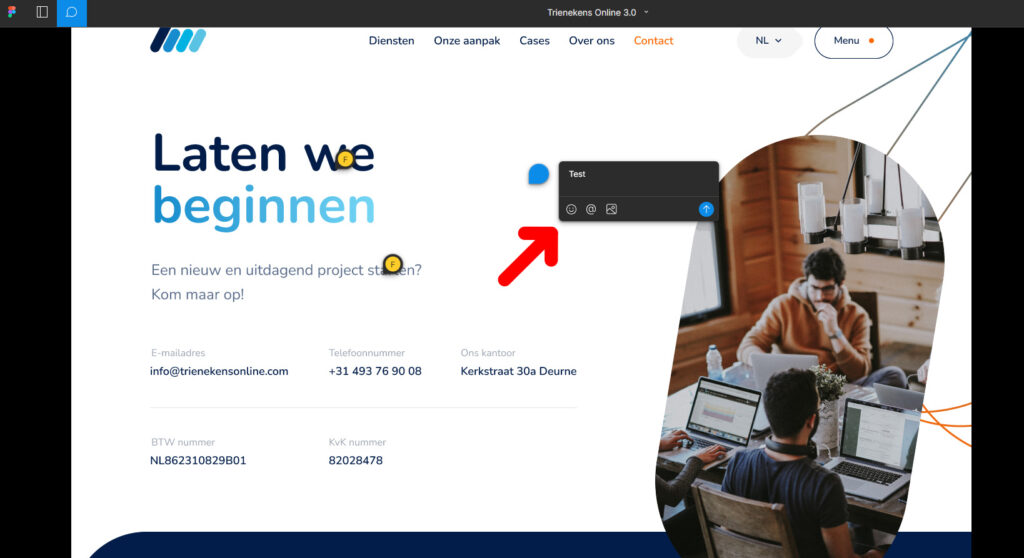
Step 3: Then type your message in the field.
Use ‘@’ to tag a colleague in your message. You can also attach images to your comment, with a maximum of 5 images per comment.